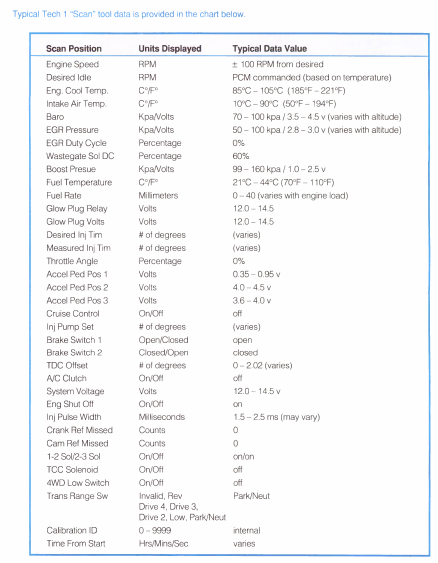
The Data List mode can be used to view the data param eters for various engine functions. This data can be compared against the typical or normal data parameters.
Select Data List by pressing the FO key at the Test Mode menu (see figure 6-24).
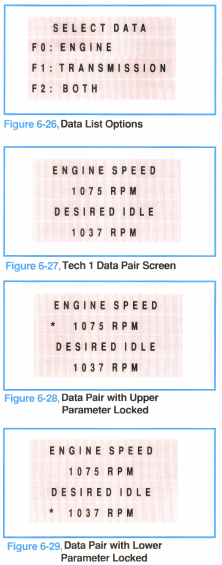
After selecting data list, a screen allows you choose which system’s data you want to view (figure 6-26). The choices are engine, transmission, or both.
Data Pairs
After you choose the data list system(s), the Tech 1 displays data list information in pairs. One scan position will appear at the top of the screen with its data value immediately underneath in the appropriate units. The second scan position will appear below the upper one, as shown in figure 6-27.
The Mass Storage Cartridge is preprogrammed with data pairs. You can scroll forward an backward through the list of predefined data pairs by using the YES and NO keys.
You can also create your own pair by locking either of the pair elements and scrolling the other entry until a new scan position is reached. To create your own data pair, use the following procedure.
1. With a data pair displayed on the Tech 1 screen, press the FO key. An asterisk will appear to the left of the uppermost parameter’s data (figure 6-28), This asterisk indicates that the parameter is locked.
2. Pressing the YES and NO keys will cause the bottom parameter to scroll.
3. To lock the bottom parameter, you must first unlock the top parameter. Do this by pressing the F1 key. The asterisk next to the top parameter data will disappear.
4. With the top parameter unlocked, press the F1 key again. An asterisk will appear next to the data of the bottom parameter (figure 6-29).
5. With the bottom parameter locked, use the YES and NO keys to scroll the top parameter until a desired position is found.
6. To unlock the bottom parameter, press the FO key.
Only one parameter can be locked at a time. Also, the data pairs you create cannot he held permanently. If you unlock a fixed parameter and begin scrolling, you will return to the preprogrammed pairs.